Pular para o conteúdo

Webcam do Notebook Dell não inicia no Linux Mint 20

Responder tópico
  • Denunciar
  • Indicar

1. Webcam do Notebook Dell não inicia no Linux Mint 20

Enviado em 19/11/2020 - 12:36h

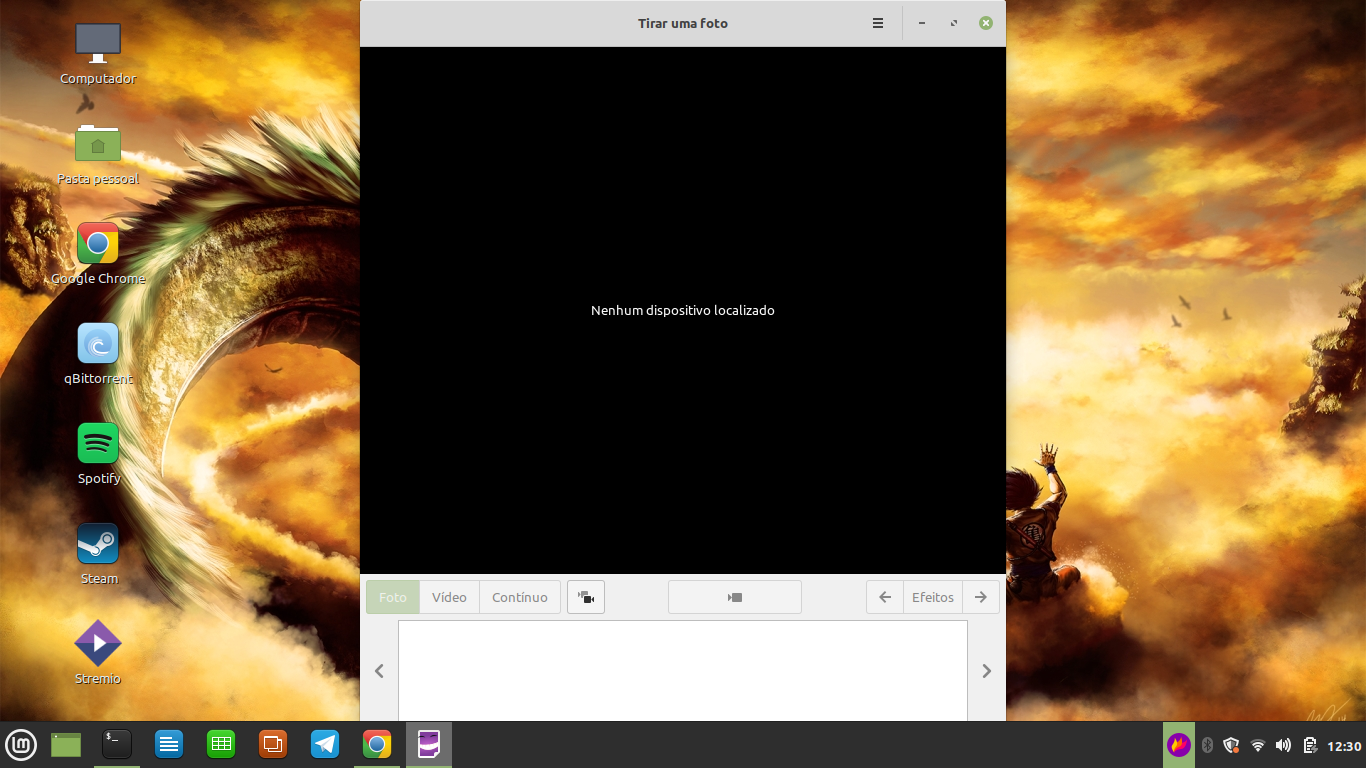
Quando tento abrir o Cheese pelo notebook ele dar o seguinte erro, já instalei os pacotes do v4l pelo synaptic mas mesmo assim ele não inicia, dar que nenhum dispositivo localizado, segue o erro do terminal:
(cheese:5715): Clutter-WARNING **: 12:29:00.159: Whoever translated default:LTR did so wrongly.
** Message: 12:29:00.314: cheese-application.vala:214: Error during camera setup: Nenhum dispositivo localizado


(cheese:5715): cheese-CRITICAL **: 12:29:00.328: cheese_camera_device_get_name: assertion 'CHEESE_IS_CAMERA_DEVICE (device)' failed

(cheese:5715): GLib-CRITICAL **: 12:29:00.328: g_variant_new_string: assertion 'string != NULL' failed

(cheese:5715): GLib-CRITICAL **: 12:29:00.328: g_variant_ref_sink: assertion 'value != NULL' failed

(cheese:5715): GLib-GIO-CRITICAL **: 12:29:00.328: g_settings_schema_key_type_check: assertion 'value != NULL' failed

(cheese:5715): GLib-CRITICAL **: 12:29:00.328: g_variant_get_type_string: assertion 'value != NULL' failed

(cheese:5715): GLib-GIO-CRITICAL **: 12:29:00.328: g_settings_set_value: key 'camera' in 'org.gnome.Cheese' expects type 's', but a GVariant of type '(null)' was given

(cheese:5715): GLib-CRITICAL **: 12:29:00.328: g_variant_unref: assertion 'value != NULL' failed

** (cheese:5715): CRITICAL **: 12:29:00.328: cheese_preferences_dialog_setup_resolutions_for_device: assertion 'device != NULL' failed
alguma ajuda, queria poder utilizar a webcam no Linux
Responder tópico

2. Re: Webcam do Notebook Dell não inicia no Linux Mint 20

Enviado em 19/11/2020 - 13:53h

1. Verifique se vc tem atalho no teclado p ativar/desativar câmera
2. Tente
sudo modprobe -r uvcvideos && modprobe uvcvideo
3. Verifique o q o sistema detecta
lspci -businfo

3. Re: Webcam do Notebook Dell não inicia no Linux Mint 20

Enviado em 19/11/2020 - 19:46h

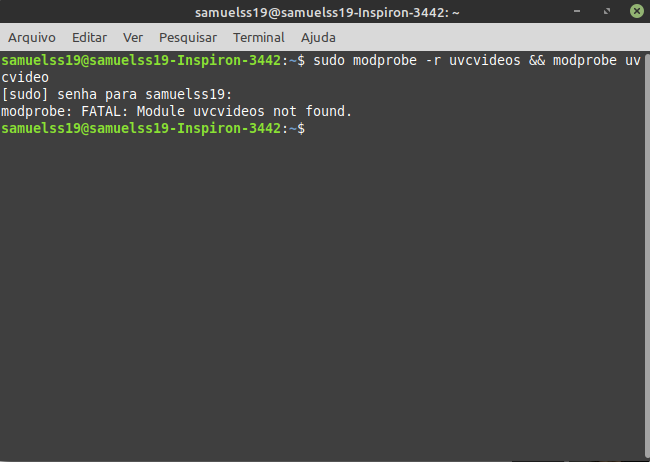
Boa noite, uso um Dell Inspiron 14, em tópicos falam na Tecla FN + F10 ou F7, os dois nao tem icone de webcam, mas tentei e continua o mesmo, já o comando sudo modprobe retornou a imagem que vou enviar, já o outro lspci retornou isto

lspci: invalid option -- 'u'
Usage: lspci [<switches>]

Basic display modes:
-mm Produce machine-readable output (single -m for an obsolete format)
-t Show bus tree

Display options:
-v Be verbose (-vv or -vvv for higher verbosity)
-k Show kernel drivers handling each device
-x Show hex-dump of the standard part of the config space
-xxx Show hex-dump of the whole config space (dangerous; root only)
-xxxx Show hex-dump of the 4096-byte extended config space (root only)
-b Bus-centric view (addresses and IRQ's as seen by the bus)
-D Always show domain numbers
-P Display bridge path in addition to bus and device number
-PP Display bus path in addition to bus and device number

Resolving of device ID's to names:
-n Show numeric ID's
-nn Show both textual and numeric ID's (names & numbers)
-q Query the PCI ID database for unknown ID's via DNS
-qq As above, but re-query locally cached entries
-Q Query the PCI ID database for all ID's via DNS

Selection of devices:
-s [[[[<domain>]:]<bus>]:][<slot>][.[<func>]] Show only devices in selected slots
-d [<vendor>]:[<device>][:<class>] Show only devices with specified ID's

Other options:
-i <file> Use specified ID database instead of /usr/share/misc/pci.ids.gz
-p <file> Look up kernel modules in a given file instead of default modules.pcimap
-M Enable `bus mapping' mode (dangerous; root only)

PCI access options:
-A <method> Use the specified PCI access method (see `-A help' for a list)
-O <par>=<val> Set PCI access parameter (see `-O help' for a list)
-G Enable PCI access debugging
-H <mode> Use direct hardware access (<mode> = 1 or 2)
-F <file> Read PCI configuration dump from a given file

4. Re: Webcam do Notebook Dell não inicia no Linux Mint 20

Enviado em 19/11/2020 - 20:45h

-aqui eu uso fn/f10 para ativar webcam no meu itautec
-mas meu dell-1525 tinha uma uma tecla/botão exclusivo p/ ligar webcam

5. Re: Webcam do Notebook Dell não inicia no Linux Mint 20

Enviado em 19/11/2020 - 21:06h

a tecla Fn+ F10 ja tentei, mas nao liga a luz da webcam que mostra que ativou, quando quero aumentar o audio ou diminuir o brilho so aperto nas teclas, nao necessita da tecla Fn, já tentei apenas aperta F10, mas fica na mesma

6. Re: Webcam do Notebook Dell não inicia no Linux Mint 20

Enviado em 19/11/2020 - 21:15h

Samuelss19 escreveu:

Boa noite, uso um Dell Inspiron 14, em tópicos falam na Tecla FN + F10 ou F7, os dois nao tem icone de webcam, mas tentei e continua o mesmo, já o comando sudo modprobe retornou a imagem que vou enviar, já o outro lspci retornou isto

lspci: invalid option -- 'u'
Usage: lspci [<switches>]

Basic display modes:
-mm Produce machine-readable output (single -m for an obsolete format)
-t Show bus tree

Display options:
-v Be verbose (-vv or -vvv for higher verbosity)
-k Show kernel drivers handling each device
-x Show hex-dump of the standard part of the config space
-xxx Show hex-dump of the whole config space (dangerous; root only)
-xxxx Show hex-dump of the 4096-byte extended config space (root only)
-b Bus-centric view (addresses and IRQ's as seen by the bus)
-D Always show domain numbers
-P Display bridge path in addition to bus and device number
-PP Display bus path in addition to bus and device number

Resolving of device ID's to names:
-n Show numeric ID's
-nn Show both textual and numeric ID's (names & numbers)
-q Query the PCI ID database for unknown ID's via DNS
-qq As above, but re-query locally cached entries
-Q Query the PCI ID database for all ID's via DNS

Selection of devices:
-s [[[[<domain>]:]<bus>]:][<slot>][.[<func>]] Show only devices in selected slots
-d [<vendor>]:[<device>][:<class>] Show only devices with specified ID's

Other options:
-i <file> Use specified ID database instead of /usr/share/misc/pci.ids.gz
-p <file> Look up kernel modules in a given file instead of default modules.pcimap
-M Enable `bus mapping' mode (dangerous; root only)

PCI access options:
-A <method> Use the specified PCI access method (see `-A help' for a list)
-O <par>=<val> Set PCI access parameter (see `-O help' for a list)
-G Enable PCI access debugging
-H <mode> Use direct hardware access (<mode> = 1 or 2)
-F <file> Read PCI configuration dump from a given file
sudo modprobe -r uvcvideo && modprobe uvcvideo
lspci -businfo (é um traço só)
verifique msgs de erro
dmesg --level=err, warn

Responder tópico

Responder tópico

Entre na sua conta para responder.

Fazer login para responder