
Instalando o AWX no CentOS 8
Dica publicada em Linux / Docker

Instalando o AWX no CentOS 8
Vamos instalar o AWX, o Ansible Tower da RedHat no CentOS 8 utilizando Docker.
Instale o Repo Epel:
# dnf install epel-release -y
Adicione o repositório do docker:
# dnf config-manager --add-repo=https://download.docker.com/linux/centos/docker-ce.repo
Efetue a instalação:
# dnf install docker-ce --nobest -y
Inicie o serviço e ative-o na inicialização:
# systemctl start docker
# systemctl enable docker
Instale os pacotes:
# dnf install git gcc gcc-c++ nodejs gettext device-mapper-persistent-data lvm2 bzip2 vim ansible python3 python3-pip -y
Instale o docker-compose:
# pip3 install docker-compose
Clone o repositório do awx:
# git clone --depth 50 https://github.com/ansible/awx.git
Acesse o diretório awx:
# cd awx/installer
E edite o arquivo inventory:
# vim inventory
E deixe as linhas assim:
Salve o arquivo e execute:
ansible-playbook -i inventory install.yml
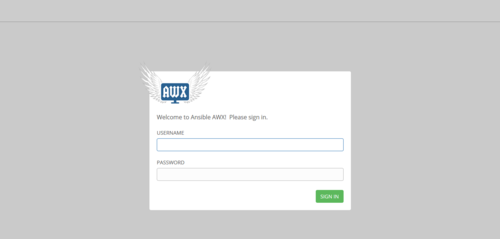
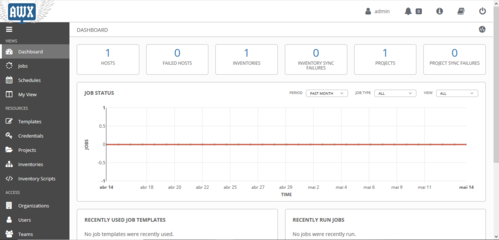
Só acessar via navegador:
http://<IP OU NOME do seu server>
 Guia de referência: https://github.com/ansible/awx
Instale o Repo Epel:
# dnf install epel-release -y
Adicione o repositório do docker:
# dnf config-manager --add-repo=https://download.docker.com/linux/centos/docker-ce.repo
Efetue a instalação:
# dnf install docker-ce --nobest -y
Inicie o serviço e ative-o na inicialização:
# systemctl start docker
# systemctl enable docker
Instale os pacotes:
# dnf install git gcc gcc-c++ nodejs gettext device-mapper-persistent-data lvm2 bzip2 vim ansible python3 python3-pip -y
Instale o docker-compose:
# pip3 install docker-compose
Clone o repositório do awx:
# git clone --depth 50 https://github.com/ansible/awx.git
Acesse o diretório awx:
# cd awx/installer
E edite o arquivo inventory:
# vim inventory
E deixe as linhas assim:
localhost ansible_connection=local ansible_python_interpreter="/usr/bin/env python3"
postgres_data_dir=/var/lib/pgdocker
awx_official=true
project_data_dir=/var/lib/awx/projects
awx_alternate_dns_servers="208.67.222.222,8.8.8.8"
postgres_data_dir=/var/lib/pgdocker
awx_official=true
project_data_dir=/var/lib/awx/projects
awx_alternate_dns_servers="208.67.222.222,8.8.8.8"
Salve o arquivo e execute:
ansible-playbook -i inventory install.yml
Só acessar via navegador:
http://<IP OU NOME do seu server>
- Usuário = admin
- senha = password


muito bom.
___________________________________
Conhecimento não se Leva para o Túmulo.