
OpenVZ + OpenVZ Web Panel no CentOS 6.4
Dica publicada em Linux / Avançado

OpenVZ + OpenVZ Web Panel no CentOS 6.4
Uma dica rápida sobre a instalação do OpenVZ + OpenVZ Web Panel no CentOS 6.4 64 bits.
Baixe o repositório do OpenVZ:
# cd /etc/yum.repos.d/
# wget http://ftp.openvz.org/openvz.repo
Importe a GPG key:
# rpm --import http://ftp.openvz.org/RPM-GPG-Key-OpenVZ
Instalando o OpenVZ:
# yum install vzkernel -y
Deixe o arquivo "/etc/sysctl.conf", exatamente como esse:
# cat /etc/sysctl.conf
# echo "SELINUX=disabled" > /etc/sysconfig/selinux
Instale o tools:
# yum install vzctl vzquota ploop -y
Agora reinicie e selecione o OpenVZ, como mostra a imagem abaixo: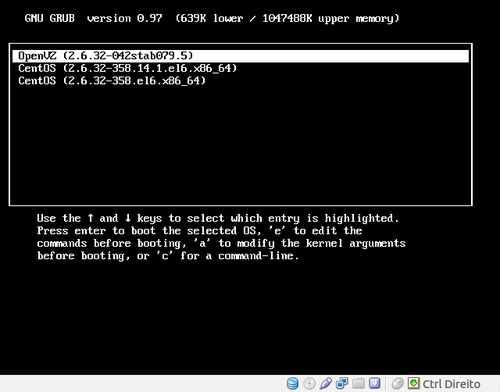
Pronto, agora está instalado. Vamos instalar um painel para um melhor uso dele.
Vamos instalar o OpenVZ Web Panel. Execute esse script, onde irá instalar o painel e suas dependências:
# wget -O - http://ovz-web-panel.googlecode.com/svn/installer/ai.sh | sh
Pronto, agora só digitar no seu browser: http://<Ip do Servidor OpenVZ>:3000
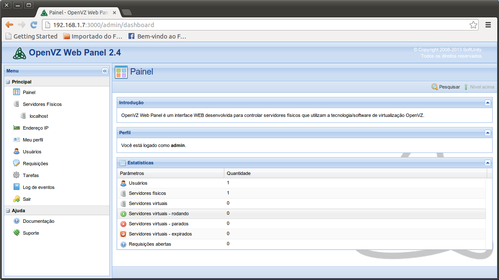
Espero que ajude.
Guia de referência para a dica:
Baixe o repositório do OpenVZ:
# cd /etc/yum.repos.d/
# wget http://ftp.openvz.org/openvz.repo
Importe a GPG key:
# rpm --import http://ftp.openvz.org/RPM-GPG-Key-OpenVZ
Instalando o OpenVZ:
# yum install vzkernel -y
Deixe o arquivo "/etc/sysctl.conf", exatamente como esse:
# cat /etc/sysctl.conf
  net.ipv4.ip_forward = 1
  net.ipv6.conf.default.forwarding = 1
  net.ipv6.conf.all.forwarding = 1
  net.ipv4.conf.default.proxy_arp = 0
  net.ipv4.conf.all.rp_filter = 1
  net.ipv4.conf.default.send_redirects = 1
  net.ipv4.conf.all.send_redirects = 0
  net.ipv4.conf.default.rp_filter = 1
  net.ipv4.conf.default.accept_source_route = 0
  kernel.sysrq = 1
  kernel.core_uses_pid = 1
  net.ipv4.tcp_syncookies = 1
  net.bridge.bridge-nf-call-ip6tables = 1
  net.bridge.bridge-nf-call-iptables = 1
  net.bridge.bridge-nf-call-arptables = 0
  kernel.msgmnb = 65536
  kernel.msgmax = 65536
  kernel.shmmax = 68719476736
  kernel.shmall = 4294967296
Desative o SELinux:
# echo "SELINUX=disabled" > /etc/sysconfig/selinux
Instale o tools:
# yum install vzctl vzquota ploop -y
Agora reinicie e selecione o OpenVZ, como mostra a imagem abaixo:
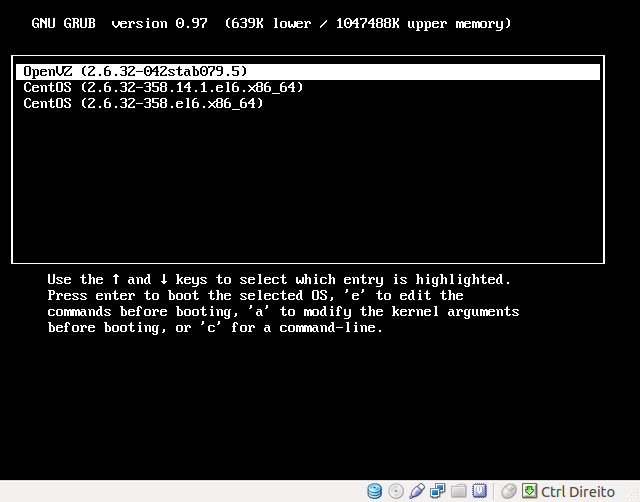
Pronto, agora está instalado. Vamos instalar um painel para um melhor uso dele.
Vamos instalar o OpenVZ Web Panel. Execute esse script, onde irá instalar o painel e suas dependências:
# wget -O - http://ovz-web-panel.googlecode.com/svn/installer/ai.sh | sh
Pronto, agora só digitar no seu browser: http://<Ip do Servidor OpenVZ>:3000
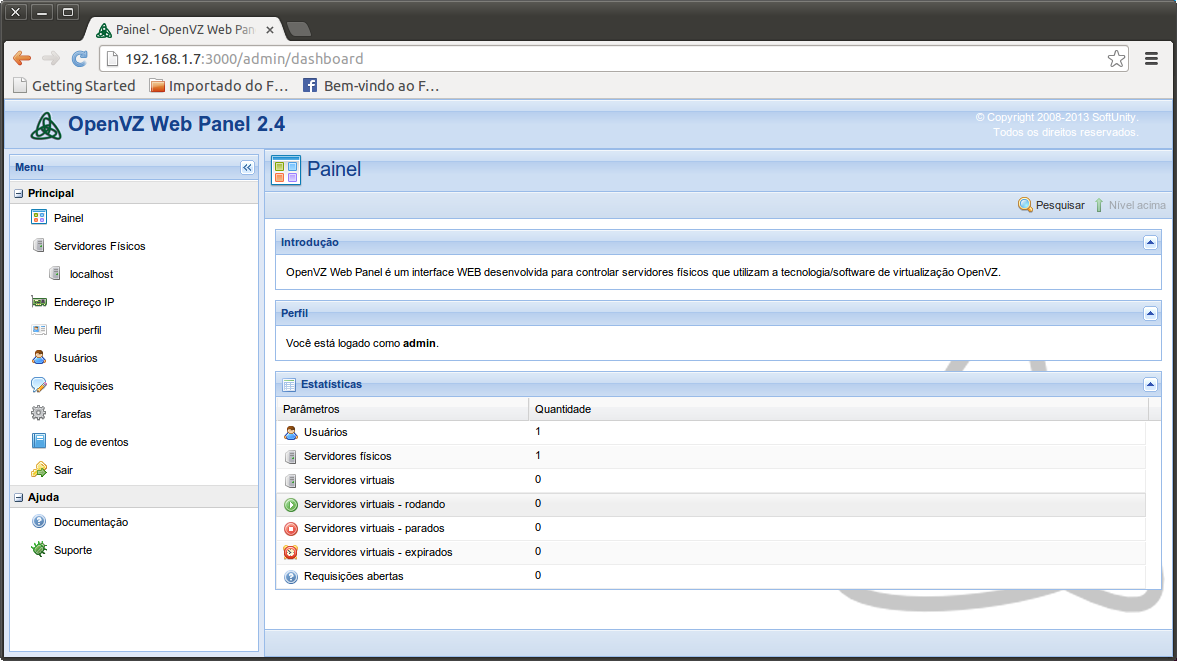
Espero que ajude.
Guia de referência para a dica:
- OpenVZ: Virtualização para servidores Linux [Artigo]
- OpenVZ Linux - Containers Wiki
- OpenVZ Web Panel « code.google.com
Obrigado!